Codex OpenDesign

Design With
Codex in
OpenDesign.

How to design interfaces with OpenAI Codex in OpenDesign: the setup, one complete task from brief to reviewed file, and the limits to know before you start.

From brief to interface01 / Codex
YOU BRING THE IDEA

“A calmer project board.
Clear priorities. Room to focus.”

Illustrative interface · not a captured product session
On This Page Example
  1. Example
  2. Fit
  3. Compatibility
  4. Setup
  5. Workflow
  6. Resources
  7. Limitations
  8. FAQ

One Complete Codex Design Task

A Codex Design Task, From Brief to Interface

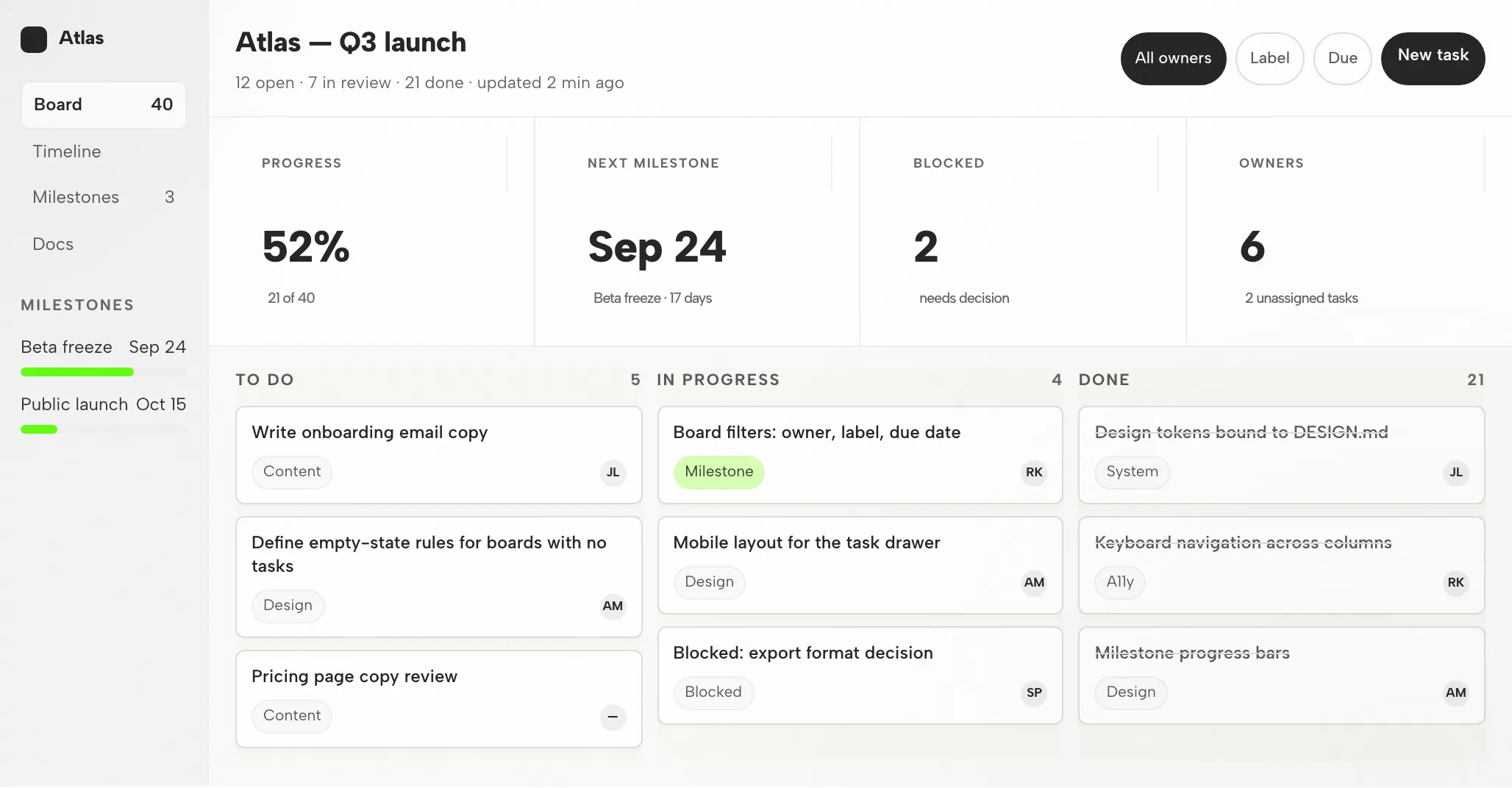
A single task, shown end to end: the brief and constraints you hand over, the artifact that comes back, and the checks you still run before it is done. The interface below is an illustrative example built for this page, not a recorded Codex run.

1Design Brief and Constraints

Brief

Design a project progress board for a small product team. Show overall progress, the next milestone and blocked work at a glance. Tasks move across To do, In progress and Done. The board must work on desktop and on mobile.

  • Design systemOpenDesign paper canvas: Albert Sans, one green accent
  • Breakpoints1440px desktop and 390px mobile, no horizontal scroll
  • InteractionsColumn filters, task drawer and keyboard navigation between columns
  • OutputOne self-contained HTML file with stable data-od-id hooks

2Division of Work: You, Codex and OpenDesign

  • You

    Write the brief, select the design system and define the acceptance criteria.

  • Codex

    Plans the layout, writes the HTML, CSS and JavaScript, runs the file and revises it on request.

  • OpenDesign

    Provides the design system and skill, renders the preview and stores every version as a file in the project.

  • Review

    Visual hierarchy, spacing on the 8px grid, both breakpoints and every interaction are checked before handoff.

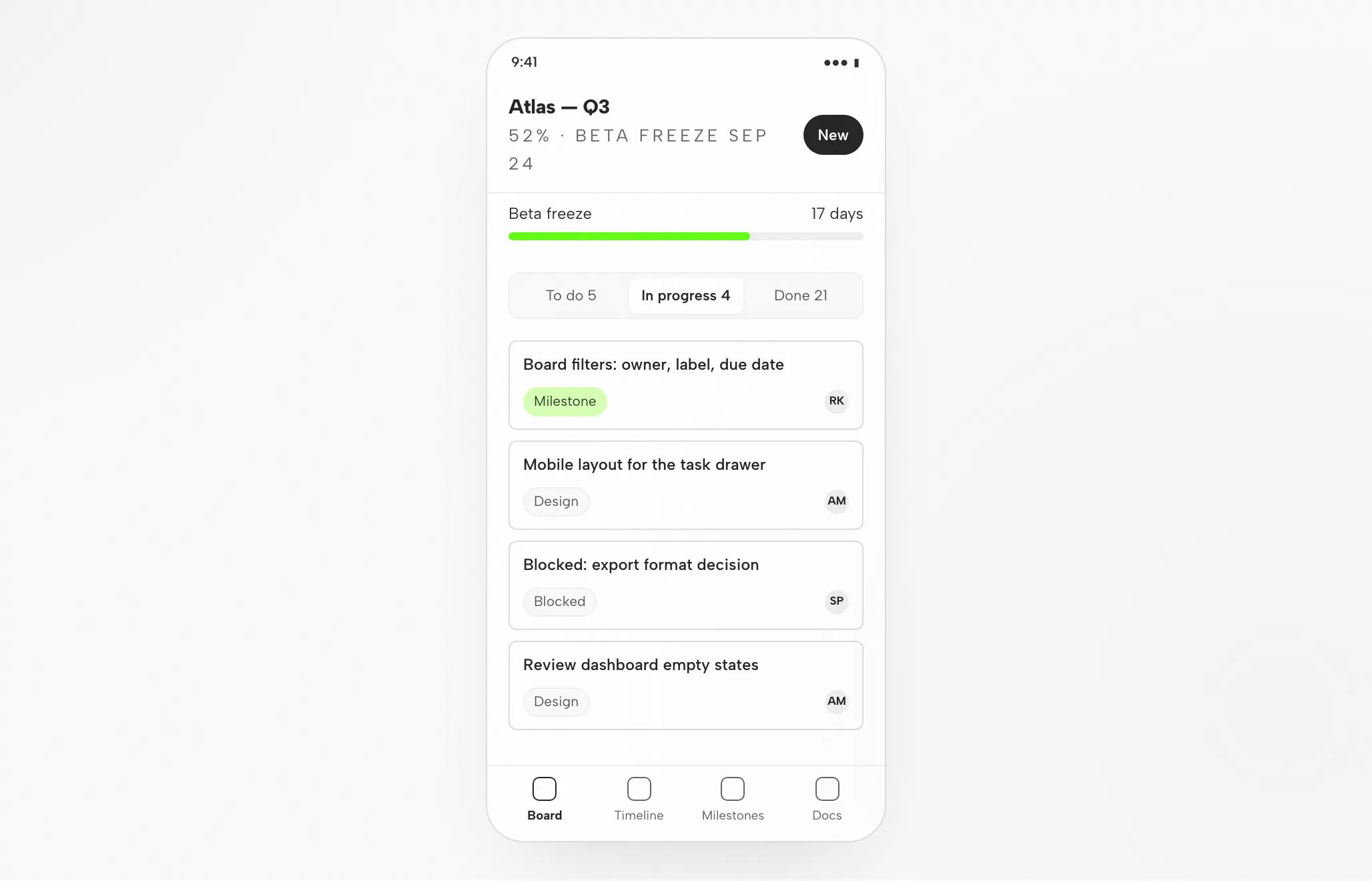
3Codex Artifact: The Board at 1440px and 390px

Codex Artifact: The Board at 1440px and 390px — Desktop
Illustrative example

4Review Before Handoff

Layout

Grid and Spacing

Sidebar, header, stats and columns sit on the 8px grid; nothing overlaps at 1440 or 390.

Hierarchy

Visual Hierarchy

Progress, next milestone and blocked count outrank the column headers; the accent marks one milestone label only.

Responsive

Mobile Layout

Columns become a segmented switch; the milestone bar stays; the sidebar folds into a tab bar.

Interaction

Interaction Checks

Switch the preview between desktop and mobile here. In your own artifact, open a task and test the filters, keyboard navigation and focus behavior.

Fit

When Codex Fits the Task, and When It Does Not

Codex Fits When

  • You start from a reference. Codex accepts screenshots as input and builds a responsive interface from them; a design system in context keeps the result on-brand.
  • You iterate on an existing interface. Ask for a change, preview the new version, keep or revert — each version is a file in your project.
  • You want output checked against constraints. Give Codex a DESIGN.md or AGENTS.md and breakpoint targets; it can render in a browser and compare against the reference.
  • You already use Codex. Continue with a familiar agent. Check authentication and billing for your chosen execution mode.

Choose Another Workflow When

  • You need editable vector files. This example is HTML, not an editable Figma document. Check a separate Figma workflow for your required asset format.
  • You have no reference and no constraints. Without a design system or examples the output tends toward a generic look; write the brief first.
  • You need a different execution mode. This guide covers local Codex. Do not assume its setup applies unchanged to a hosted workflow.
  • Your team works in Claude Code or Cursor. Those agents have their own pages; the workspace is the same, the setup differs. See related agents.

Compatibility

Codex Requirements Before You Start

This guide covers local Codex. Other modes have different setup and billing. Published references checked on 11 September 2026.

Tool ScopeOpenAI Codex, the coding agent

OpenAI Codex, the coding agent — not the older code-completion model. This page is about designing interfaces with Codex, not the Codex app’s own UI. OpenDesign’s setup notes list Codex among the available agents.

Accounts and AuthenticationChatGPT sign-in or API key

For local Codex, sign in with ChatGPT or use an OpenAI API key. They have different billing and policy implications. Follow OpenAI’s authentication instructions; this page does not promise a quota or price.

System and VersionsDesktop app or source

Check the download page for desktop builds. The Node.js and pnpm requirements in the source quickstart apply to running from source, not to installing a desktop package. Minimum compatible Codex version: not verified here.

Connection CheckThe success signal

Follow the connection instructions shown by your installed version, then run a small task. Confirm that the intended agent handled it and that the artifact opens. A download alone does not establish a working connection.

Start with the desktop app

Codex Setup in Three Steps

Download first, complete the Codex setup for your installed version, then check a small result. You do not need to build OpenDesign from source to follow this path.

  1. 1

    Download the OpenDesign Desktop App

    Choose the package for your computer, install it and open the app.

    Download OpenDesign
    CHECKPOINT
    The desktop app opens. Already installed? Move to the next step; there is no need to download again.
  2. 2

    Prepare Your Codex Connection

    Follow the Codex instructions in your installed version. For local Codex, complete ChatGPT sign-in or API-key authentication before sending a task.

    Read Codex authentication notes
    CHECKPOINT
    Confirm the intended agent and account. If it is unavailable, check compatibility before trying a larger task.
  3. 3

    Run One Small Codex Task

    Use a small brief so you can judge the whole loop, including one revision.

    Starter brief

    Build a settings screen with a profile form and a save confirmation. Use my design rules. Check it at desktop and mobile widths.

    CHECKPOINT
    Open the result, test the save state and request one specific change. A generated file is the beginning of review, not the end.

To run from source, follow the technical quickstart instead. To install the plugin in Codex, use the installation entry below.

The Codex design workflow

The Codex Design Workflow in Five Steps

The same progress-board task, followed from brief to verified file. Each step lists what you provide, what Codex does, what OpenDesign contributes and what you check.

  1. 1

    Design Brief

    Plain language, three to six lines. Name the audience, the job of the screen and the platforms.

    • YouWrite the brief; attach a reference screenshot if you have one.
    • CodexReads the brief plus the project's AGENTS.md; asks when something is ambiguous.
    • OpenDesignProvides the project, the prompt surface and the skill for the artifact type.
    • CheckConfirm the brief states the acceptance criteria. Adding them now is cheaper than after generation.
  2. 2

    Design Constraints

    A design system and a few hard rules. This is what separates on-brand output from a generic look.

    • YouPick a design system; state breakpoints and any must-use components.
    • CodexLoads the DESIGN.md tokens and posture rules into context before writing a line.
    • OpenDesignShips the design-system library and binds the chosen one into the skill template.
    • CheckThe tokens match your brand. One accent, the right fonts, the right radius.
  3. 3

    Generate the Interface

    Codex writes a self-contained HTML file: layout, styles, interactions and stable hooks.

    • YouWait, or answer a clarifying question. Nothing to configure.
    • CodexPlans the sections, writes the HTML, CSS and JavaScript, runs the file and fixes what fails.
    • OpenDesignSaves the artifact into the project folder and indexes it for preview.
    • CheckNothing yet. Judge the file after it is rendered, not from the source.
  4. 4

    Preview

    The file renders inside OpenDesign at the widths you asked for. This is where the design is judged.

    • YouSwitch widths, click through the interactions, leave comments on elements.
    • CodexCan open a real browser itself to compare against the reference when asked.
    • OpenDesignRenders the preview, exposes data-od-id targets for comments and edits.
    • CheckHierarchy, contrast, overflow at 390px, focus states, and whether the accent is used sparingly.
  5. 5

    Revise and Verify

    Request changes by pointing at elements in the preview. Every revision is a new file; nothing is overwritten silently.

    • YouTurn comments into requests; decide when the task is done.
    • CodexApplies the changes in place and re-runs the file.
    • OpenDesignKeeps versions side by side; exports an image or the HTML when you are done.
    • CheckRe-check only the area that changed, then the whole page once at each breakpoint.

Resources

Codex Design Resources

AGENT INSTALLATION ENTRY

Install OpenDesign in Codex

A plain-text address with installation instructions for Codex to read, not a visual tutorial. Copy the prompt into Codex and it reads the entry itself.

Prompt for Codex

Install OpenDesign in Codex by reading https://open-design.ai/codex-plugin/ and following its installation instructions. Ask before changing configuration.

View the instruction entry

Limitations

Codex Limitations, Manual Checks and Fallbacks

  • Local Agent RequiredThis page describes local Codex. Its requirements do not describe every mode available in OpenDesign.
  • Usage LimitsUsage limits and cost come from your OpenAI API key or ChatGPT plan. This page makes no claim about free quotas.
  • NetworkLocal project files do not mean offline inference. Review your agent’s provider settings and data policies before sharing sensitive inputs.
  • Output Is HTMLArtifacts are HTML files, not vector design files. Figma round-trips go through Figma's own Codex integration.
  • Manual ReviewAccessibility, real content, brand fit and interaction correctness are reviewed by you in the preview. Codex can self-verify in a browser when asked; treat that as a first pass.
  • FallbackIf the agent is unavailable or a task fails, check the installed version’s connection instructions and authentication. Preserve the error and the last working artifact before changing configuration.

FAQ

Common Questions About Codex and OpenDesign

What Does Codex Do, and What Does OpenDesign Do?
Codex is the agent: it reads your brief, writes and runs the code, and revises. OpenDesign is the workspace around it: design systems, skills, a preview, comments and versioned files. OpenDesign is an independent open-source project and is not affiliated with OpenAI.
What Do I Need Before I Start?
The desktop app, a working Codex connection for your chosen mode and a small task to test. See compatibility; source-build requirements are separate. A design system helps; pick one from the library if you have none.
I Already Installed OpenDesign. What's Next?
Follow the connection instructions for your installed version and run the small test in the setup section. Then bring a real brief. The technical quickstart covers the separate source-run path.
How Is the Design Plugin Different From This Guide?
This page explains the UI workflow. The plugin directory helps you choose resources; the installation entry contains instructions for your agent to follow. They serve different tasks.
Where Can I See Other Agents?
The agents hub lists the available agent guides. Claude Code, Cursor and OpenCode are linked above under related agents.

Start a First Design Task With Codex

Start with a small task, judge the round trip, then bring the real brief. Choose the option that matches your setup; the page does not detect it.

Where are you in the setup?
Download OpenDesign See the setup checklist

OpenDesign Desktop

One design system. Every output unmistakably your brand

Inside the full Vibe Design Workspace, use the same brand rules across websites, slide decks, interactive prototypes, dashboards, images, and HTML video. Connect Codex, Claude Code, Cursor, and other coding agents already on your computer, then create locally for free.

  • Web, slides, prototypes, dashboards, images, and video
  • 140+ design systems, plus the full template and skill library
  • Connect local Codex and 21+ coding agents · Free to use
Download free

Available for macOS and Windows